Your mission briefing for Troop Tracker — from enlisting to suiting up on deployment day.
Getting Started & Registration
- Click Sign Up in the top-right corner of the navbar.
- Choose your sign-up method: Email, Google, or XenForo (if your garrison's installation supports it).
- Fill in the registration form — see the fields below for details.
- Select your Account Type and Organization(s).
- Submit the form and wait for Command Staff approval.
- You'll receive an email notification once your account is activated.
- Legal Name — used for official records and shared with event coordinators for safety purposes; not displayed publicly.
- Display Name — the name shown publicly on your profile and the event roster.
- Email — used for account communications (pre-filled if you sign up via Google or XenForo).
- Phone — optional; used for event coordinator contact.
- Date of Birth & Guardian Email — required only if you are under 18. Your guardian must already have an active account on the tracker.
- Password — required only if you choose the Email sign-up method.
Approval times vary by garrison and Command Staff availability. Most accounts are reviewed within a few days. You'll receive an email when your account is approved and active. If you haven't heard back after a week, reach out to your garrison's Command Staff directly.
Yes — if your garrison has XenForo integration configured, you can use Sign Up with XenForo to link your existing forum account. This avoids creating a separate password and keeps your identities connected.
You must first create a Troop Tracker account and request access to the appropriate club(s). Once your request has been approved by a moderator from the applicable organization, Troop Tracker will automatically update your forum permissions.
Please note that permission updates are not immediate and may take a couple of hours to appear.
Account Types
Member — Active costumed member of a Star Wars costuming organization. Can sign up for event shifts, select a costume for each shift, and track costume hours in their service record.
Handler — Handler for a costumed member. No costume is required. Handlers sign up for shifts and appear on the event roster alongside the trooper they support.
Visitor — Temporary access valid for 6 months. Visitors are assigned to the top-level organization only — no region or unit selection is required. Useful for visiting members.
Account type changes require Command Staff approval. Contact your garrison's leadership to request a type change (for example, upgrading from Visitor to Member once you change garrisons).
Go to Account → Setup. If your visitor period is approaching expiration, you'll see a renewal option there. Renewals are granted at Command Staff discretion.
Organizations & Club Memberships
Organizations follow a three-level hierarchy:
- Organization — the top-level club (e.g., 501st Legion, Rebel Legion)
- Region / Garrison — a regional chapter within the organization
- Unit / Squad — a local sub-group within the region
- On the registration form, check the box next to each organization you belong to.
- Enter your member ID (e.g., TK number) for that organization if applicable.
- Select your Region/Garrison from the dropdown.
- Select your Unit/Squad once a region is chosen.
Yes. Many members hold dual or triple membership (e.g., 501st Legion and Rebel Legion). Check all applicable organizations on the registration form. Each membership is reviewed and approved independently by Command Staff.
Go to Account → Club Memberships. You can add new organizations or update your region/unit there. Changes require Command Staff re-approval before they become active.
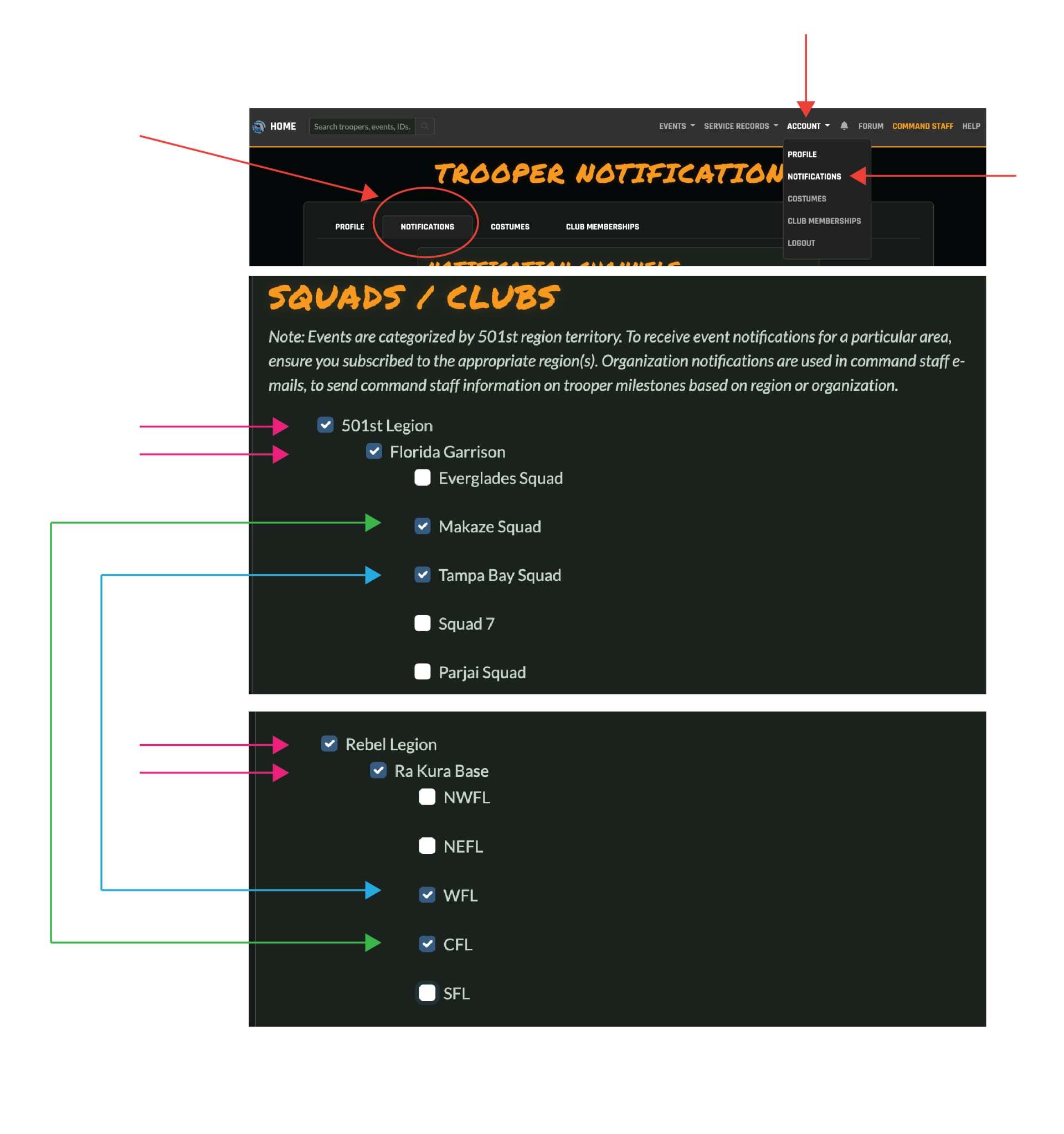
Go to Account → Notifications, then scroll to the Squads / Clubs section.
Select the checkbox next to each club or region you want to receive notifications from. You may need to select the parent organization as well, such as 501st Legion and Florida Garrison, along with the specific squad.
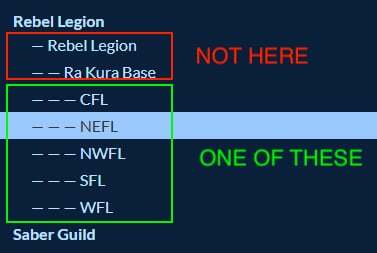
Most clubs prefer that you select the most specific unit or region that applies to you, rather than the parent organization.
For example, under Rebel Legion, do not select only Rebel Legion or Ra Kura Base when a more specific regional option applies. Instead, choose the appropriate region, such as CFL, NEFL, NWFL, SFL, or WFL.
Requests made at the wrong organizational level may be denied and require you to submit a new request.
Costumes
- Navigate to Account → Costumes.
- Use the search box to find your costume type by name (e.g., "Stormtrooper", "Rebel Fleet Trooper").
- Click the costume in the results to add it to your profile.
- Repeat for each costume you own.
Absolutely. Add as many costumes as you own. When signing up for an event shift, you'll select which costume you'll be wearing for that specific shift.
Go to Account → Costumes, find the costume in your list, and use the delete action to remove it.
Costume types are managed by Command Staff. If your costume isn't available, contact your garrison administrator to have it added to the system.
Please notify your unit leader, or contact an administrator.
Yes. A costume can still qualify for credit with multiple clubs. However, Troop Tracker 2.0 no longer creates separate costume entries labeled as “dual” or “triple” approved.
For example, instead of having separate entries such as:
- Jawa - 501st
- Jawa - RL
- DUAL: JAWA - 501st + RL
Troop Tracker 2.0 only lists Jawa.
The tracker already knows which clubs recognize that costume.
When you select your costume for a troop, Troop Tracker checks:
- Which clubs recognize the costume
- Which of those clubs you are an approved member of
- Which organizations are eligible for credit for that troop
At the end of the troop, you will be asked which eligible club or clubs should receive credit. You may be able to select one club or multiple clubs, depending on your memberships and the costume’s approvals.
For example, if Jawa is recognized by both the 501st and Rebel Legion, and you are an approved member of both organizations, the tracker may allow you to credit the troop to one or both clubs.
The costume may not currently be marked in Troop Tracker as being recognized by that club, or your membership with that organization may not be properly connected to your account.
Contact the appropriate club’s chain of command or membership staff. They can verify your costume approval and assist with correcting any missing troop credit.
Events
Click Events in the navbar. You'll find three views:
- List — a filterable table of all upcoming events
- Calendar — a monthly calendar view of events
- Map — an interactive map showing event locations
- Event name, date, and location
- Organizing group or beneficiary
- Available shifts (time slots) with roster capacity
- Current roster — who is signed up and what costume they're wearing
- Mission Brief with any important event-specific information
A shift is a specific time slot within an event. Some events have a single shift covering the whole appearance; others split into multiple shifts (e.g., morning and afternoon). You sign up for the shift(s) you can attend, not the event as a whole.
Each shift has a maximum roster capacity. If a shift is full when you sign up, you'll be placed on the standby list. If a spot opens up, standby troopers may be moved to the active roster. You'll still appear on the event page so coordinators know you're available.
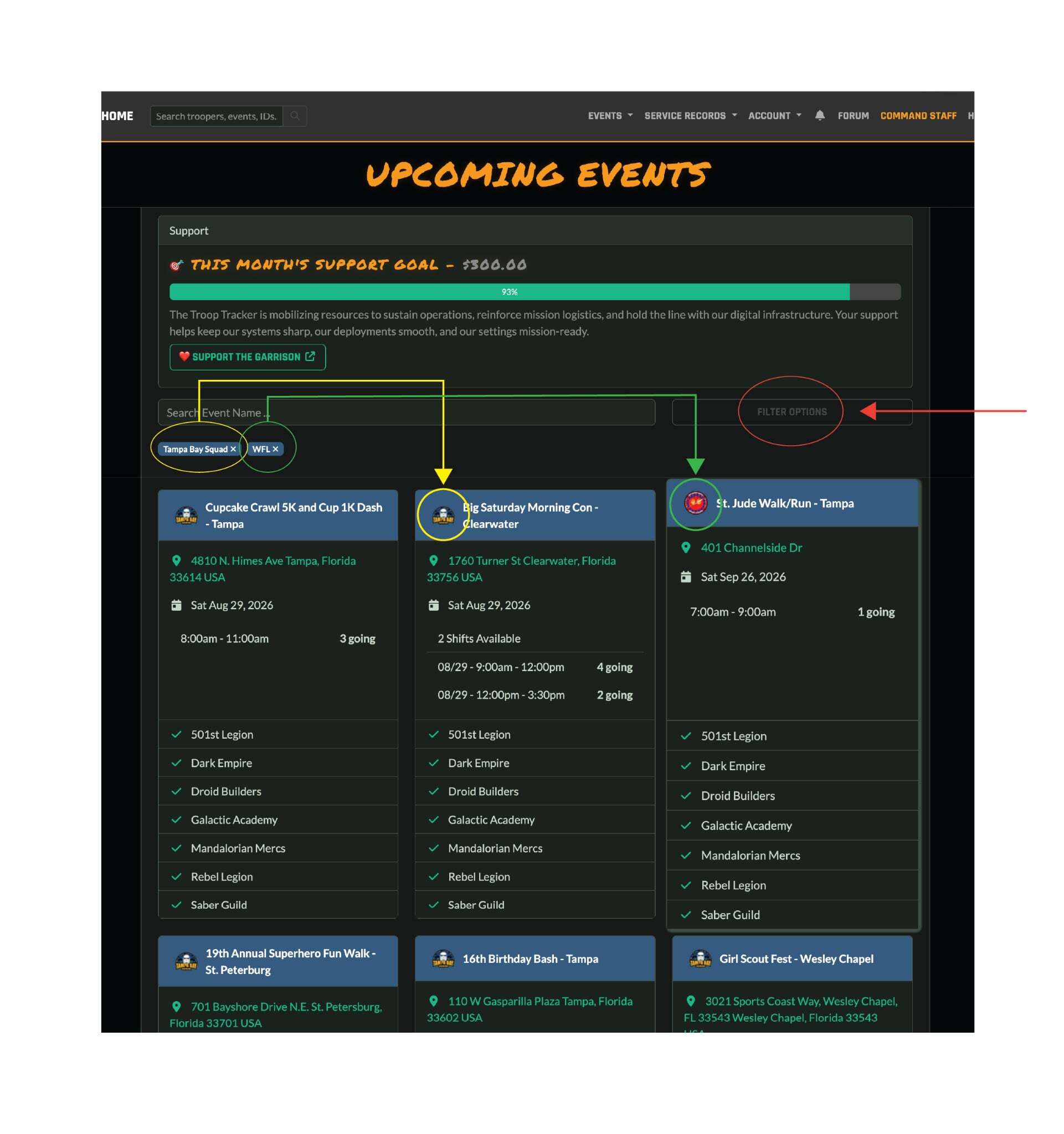
On the Upcoming Events page, select Filter Options and choose the clubs or organizations whose events you want to view.
Your selected filters will appear beneath the event search box. Events matching any of the selected organizations will remain visible, and the organization’s logo will appear on the event card.
To remove a filter, select the × next to its name.
Signing Up for Events
- Open the event page and locate the shift you want to attend.
- Click the Sign Up button on that shift.
- Select the costume you'll be wearing from your profile.
- Choose your role if applicable (e.g., character role, handler).
- Read and acknowledge the Mission Brief.
- You'll be added to the active roster (or standby if the shift is full).
Yes. Return to the event page and use the update option on your shift entry to change your costume selection or role. Updates may be restricted closer to the event date.
Open the event page and find your entry on the shift roster. Use the remove/withdraw option. If you're withdrawing close to the event date, please notify your event coordinator directly so they can adjust plans.
After the event, you may be prompted to confirm your attendance. The system or an event coordinator will mark shifts as complete, which logs the hours to your service record.
The troop will be listed on your Service Record, or under your Troops/Missions stat. When you confirm a troop, your status will change from Going to Attended.
Please refer to your unit leader to get this corrected.
Some shifts are split into named stations — for example, an information booth, photo area, stage door, or parking lot — each with its own requested trooper count. Stations are optional and set up per shift by your event coordinator; not every shift uses them.
If the shift you're signing up for has stations, yes — you'll need to choose one before you can complete your signup. If the shift doesn't use stations, you won't see this option at all.
Yes, while the shift is still open. Return to the event page and update your station from your roster entry. If the station you want is full, you'll be moved to standby for that station instead.
You'll still be signed up, but with Stand By status for that station. If a spot opens up — someone leaves the station or the requested count is raised — standby troopers are promoted in the order they signed up.
Each stationed shift shows a summary near the top of the shift, listing every station as Station Name: current / requested, based on troopers currently confirmed Going at that station.
If a shift uses stations, every signup on that shift must have one assigned — you can switch to a different station, but you can't remove it entirely while the shift is open.
Guests
A guest is a non-costumed attendee who accompanies a trooper to an event — for example, a family member, partner, or media contact. Guests are listed on the event roster under the trooper who added them.
- Sign up for the shift first (guests can only be added after you're on the roster).
- On the event page, find your shift entry and click Add Guest.
- Enter the guest's name.
- The guest will appear on the roster beneath your entry.
Yes. Return to the event page, find the guest entry under your shift, and use the update or remove action to make changes.
Friends
The friends feature lets you connect with other troopers on the tracker. Friends are highlighted on event rosters, making it easy to coordinate which events you're attending together.
- Search for a trooper using the global search bar in the navbar.
- Open their Service Record profile page.
- Use the friend action on their profile to send a friend request.
Your friends list is accessible from your account page. You can view current friends and remove connections that are no longer relevant.
How-To Videos
Still have questions?
Contact 501st Legion
 Rebel Legion
 Mandalorian Mercs
 The Dark Empire
 Droid Builders
 Saber Guild
 Galactic Academy